
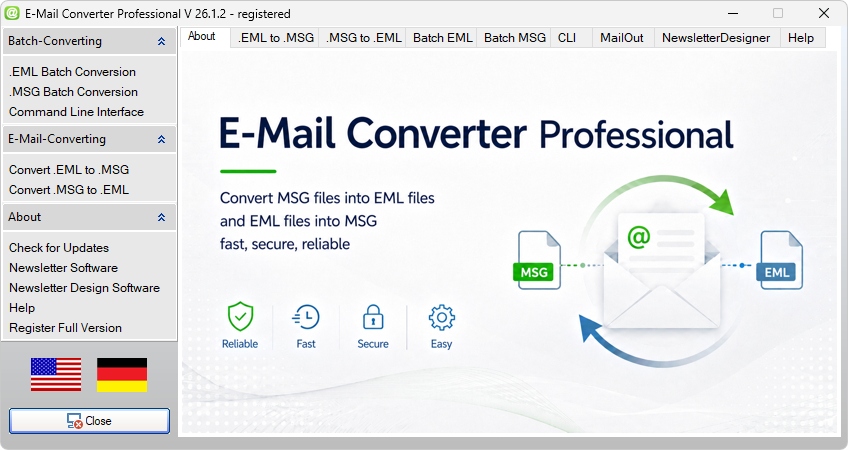
Email Converter Professional can create EML files from Outlook MSG archives, but the final archive also needs a usable structure. This guide explains how to organize, name and maintain converted EML files so old messages remain findable, manageable and reusable.
After conversion, the next task is archive organization. A folder full of EML files may look complete, but it loses value when users cannot tell which messages belong to a customer, project, year, department or business process. Email records need a storage structure that reflects how the files will be searched later. Email Converter Professional can prepare MSG archives for use in EML format, while the output structure must fit the planned archive work. This matters for documentation, audits, customer service, finance records, legal cases and mailbox migration, where a message may be needed months or years after export. The post-conversion structure should turn exported emails into a working record collection. Files should be arranged so they can be backed up, reviewed, transferred and understood by someone who did not handle the original mailbox.
Why EML Organization Matters After MSGtoEML Conversion
Archive structure affects usability after the original Outlook environment is gone. Converted messages may be needed for backup, internal documentation, customer history, legal retention or import into another email system. Without order, even a complete archive becomes slow to search. Organized folders reduce friction for everyone who needs access. Employees can find relevant emails faster, administrators can manage backups with fewer surprises and teams can see which archive section belongs to which business area. Shared drives, document management systems and external storage need this separation. A structured MSGtoEML archive also prevents confusion around duplicate-looking files, unclear ownership and mixed topics. When customer, department and year folders are separated, users spend less time interpreting the archive and more time using the record they need.
Create Folder Categories for Email Converter Professional Output
Folder categories should match the way users will search the converted emails. Before storing the final output from Email Converter Professional, decide whether the archive logic should follow customers, projects, departments, years or business topics. Time-based structures are suitable when older messages must be retained by year, quarter or reporting period. Departments may need separate archive areas for finance, sales, legal, management, purchasing or support, mainly when access rights and ownership differ between teams. Some archives need narrower categories. Finance can separate invoice communication by vendor or fiscal year. Legal can organize messages by case, matter number or contract group. Support can arrange email output by ticket topic, product line, customer issue or escalation level. The right structure lets future users understand the archive without knowing the original mailbox history.
- Faster search when users need to locate old communication, records or project-related emails.
- Cleaner backups because archive folders can be copied, checked and restored in a controlled way.
- Fewer duplicates caused by repeated exports, unclear storage locations or mixed output folders.
- Clearer archive ownership for departments, teams, customers, projects or administrative areas.
- Easier team access when multiple users work with the same converted EML archive.
- Better long-term maintenance because files can be reviewed, moved, updated or retired consistently.
Avoid Unstructured Output Folders After Conversion
One large output folder may feel convenient immediately after conversion, but it creates problems as the archive grows. When hundreds or thousands of EML files sit together, users must rely on manual scanning, operating system search or memory to find the right message. Unstructured folders also make unrelated files look similar. Messages from different customers, years, projects or departments appear side by side without context. If filenames are similar or export-generated, users cannot quickly see whether a file belongs to a contract discussion, invoice question, customer complaint or internal approval chain. Ownership becomes unclear as well. A finance record, legal message and support email may require different access and retention handling, but a general output folder hides those differences. For serious MSGtoEML archive work, the export folder should be treated as a temporary staging area, not final storage.
Practical Naming Rules for MSGtoEML Output Files
File names help users sort, search and identify converted EML files after export. Even with a strong folder structure, users need names that indicate what a message contains without opening every file. This matters when Email Converter Professional output is stored in Windows folders, shared drives or document management systems. The naming rule should be simple enough to apply across the full archive. The aim is not a long description, but a predictable order with the most relevant details. When every file follows the same pattern, older emails become easier to scan and compare. For MSGtoEML archive work, filenames should support chronological sorting, quick recognition and safe file handling. Consistent names also reduce confusion when several people use the same archive or when EML files are copied to another storage location.
| Archive Type | Recommended Folder Structure | Best Use Case |
|---|---|---|
| Customer Archives | Customers > Customer Name > Year > Topic | Use this structure when converted EML files must stay connected to individual clients. It fits account history, order communication, contract questions, service requests and long-term customer documentation. |
| Customer Archives by Region | Customers > Region > Customer Name > Year | Suitable for companies that manage accounts by country, sales territory or branch office. Regional teams can access their own MSGtoEML archives without mixing client communication across markets. |
| Project Archives | Projects > Project Name > Phase > Year | Fits planning emails, approvals, delivery updates and internal project decisions that must stay connected. Project managers can review the communication chain by phase. |
| Project Archives by Client | Projects > Customer Name > Project Name > Communication Type | Suitable when one customer has several projects and each project needs a separate EML archive. It prevents project messages from blending into a general customer folder. |
| Support Archives | Support > Product or Service > Customer > Case Topic | Designed for helpdesk and technical service teams. Older support emails, escalation messages and solved cases remain close to the product or customer context. |
| Support Archives by Status | Support > Open Cases or Closed Cases > Year > Customer | Use this when active support communication must be separated from completed cases. It helps maintain older EML files without mixing them with ongoing work. |
| Invoice Archives | Finance > Invoices > Incoming or Outgoing > Year | Fits accounting teams that need quick access to invoice-related emails, payment reminders, vendor questions and customer billing communication after MSGtoEML conversion. |
| Vendor Archives | Finance > Vendors > Vendor Name > Year > Topic | Practical for supplier messages, purchase confirmations, delivery notices, invoice discussions and contract-related communication in one structured EML archive. |
| Legal Archives | Legal > Case or Contract Name > Communication Type > Year | Use this for sensitive records that must stay traceable and separated. It fits cases, contract negotiations, disputes and compliance-related communication. |
| Compliance Archives | Compliance > Regulation or Topic > Year > Department | Suitable when converted EML files support audits, retention duties or policy documentation. Reviewers can locate messages by subject area instead of searching a full mailbox export. |
| Department Archives | Departments > Department Name > Year > Topic | Fits organizations where email ownership follows internal departments such as sales, finance, HR, purchasing or management. Each team can maintain its own archive area. |
| HR Archives | HR > Employee or Process > Year > Document Type | Suitable for personnel communication, application records, internal approvals and HR process documentation. Access should be restricted because these EML archives may contain sensitive data. |
- Use ISO date format at the beginning of each file name, such as
YYYY-MM-DD, to support chronological sorting. - Keep subject lines short and remove unnecessary reply prefixes if they add no context.
- Avoid forbidden Windows characters such as
\,/,:,*,?,",<,>and|. - Use consistent sender names so the same person, company or department does not appear under several file name variations.
- Avoid unclear abbreviations that another user may not understand months or years later.
- Keep source MSG folders and converted EML output folders separate so file naming and review work stay controlled.
Use Date, Sender and Subject in EML File Names
A practical filename pattern is YYYY-MM-DD_Sender_Subject.eml. This format places the date first, followed by the sender and a shortened subject. For example, an email from a supplier about an invoice could be named 2025-03-18_SupplierName_Invoice-Question.eml. The ISO date format lets Windows sort files chronologically. When the year comes first, followed by month and day, users can browse a folder and see the message order at once. This is clearer than names that start with a subject, random export number or shortened mailbox label. Sender and subject add context before the file is opened. The sender identifies the communication partner, while the subject describes the topic. This pattern fits customer communication, invoices, project records, support emails and other MSGtoEML archives where quick orientation matters.
Keep File Names Short and Windows-Compatible
File names should remain short enough to copy, back up and move without errors. Many email subjects are too long for file naming, mainly when they include reply chains, ticket numbers, customer names or automatically generated system text. Shorten the subject to the part that identifies the message. Windows compatibility also matters. Certain characters cannot be used in file names, and deep folder paths can cause problems during copying, synchronization or backup. A long EML filename inside several nested customer, project or department folders may become hard to process. Symbols, punctuation marks, emojis and non-standard separators should be avoided where possible. They can cause problems in scripts, backup software, file transfer systems or older environments. A safe MSGtoEML filename should rely on words, numbers, hyphens and underscores. Short Windows-compatible names make the archive more robust. Files are less likely to be skipped during copy operations, rejected by storage systems or difficult to restore from backup.
Maintain an Email Converter Professional Archive Over Time
An EML archive may change after the first conversion. Teams may add newly converted messages, merge older archives, split folders by department or transfer responsibility to another person. Maintenance keeps the archive understandable as it grows. When new MSG files are converted with Email Converter Professional, check the new EML output against the existing archive rules before adding it. This prevents confusion about which messages belong to which period, customer, project or responsibility area. Archive merges require care. Older converted emails may follow another structure, review status or naming pattern. Review the origin of each archive section before copying everything into one combined folder.
Separate Original MSG Files from Converted EML Files
Original MSG files and converted EML files should be stored in separate locations. This protects the source material while the converted output is reviewed, organized or prepared for use. If both formats share one folder, users may rename, move or overwrite the wrong version. Separation also defines responsibility. The MSG folder can remain the untouched source archive, while the EML folder becomes the working archive for search, migration, backup or team access. This distinction helps when different people handle conversion, review and storage. Keeping both formats apart simplifies troubleshooting. If an issue appears in the EML archive, users can return to the original MSG file and repeat the export for that item or folder. Source files should stay stable until the converted archive has been checked and accepted.
Create a Simple Index for Converted EML Archives
A simple archive index gives Email Converter Professional projects a written reference. It records what was converted, where it is stored and what each folder contains. This is valuable when old email records need to be found by someone who did not handle the original conversion. A simple archive index gives Email Converter Professional projects a written reference and helps teams document files created with a MSGtoEML converter for Outlook files without relying on the person who handled the original conversion. The index can be a spreadsheet, text file or internal documentation page. Include folder path, customer or department, project name, date range, conversion date and short notes. These details describe the archive scope without requiring users to open every folder. Notes are helpful when an archive has exceptions. The index can mention folders that contain only incoming messages, older files merged from another archive or customer folders reviewed separately. This keeps the EML archive easier to manage when responsibilities change or new files are added.