

If you are using photo organization software for Windows 11 like SortPix XL for Windows 11, utilize its filtering options to quickly locate specific images based on tags, dates, and categories.
Managing a large collection of photos can become overwhelming without the right tools. Photo organization software Windows 11 provides features that help users effectively categorize, manage, and retrieve images. Utilizing such software allows for improved efficiency in maneuvering vast photo libraries. One notable software in this category is SortPix XL, which offers an array of tools designed to simplify the photo organization process. By making use of its capabilities, users can boost their photo management experience significantly.
When working with photo organization software Windows 11, users should begin by developing a system for categorizing their images. This can involve creating folders based on events, dates, or themes, allowing for easy navigation through the collection. SortPix XL facilitates this by providing options to assign tags, keywords, and ratings to individual photos. Such custom categorization enables quick filtering in the future, making it easier to find specific images without sifting through an entire library. Establishing a consistent naming convention for files can further streamline this process.
Relevant facts first
- Provides a exhaustive guide for using SortPix XL, a photo organization software, for Windows 11.
- Highlights special features and services offered by SortPix XL to enrich photo management.
- Discusses common mistakes users make when sorting photos with organization software.
- Aims to improve user experience and efficiency in organizing digital photo collections for Windows 11.
Another important aspect of photo organization is the ability to filter and search for images efficiently. SortPix XL includes powerful filtering options that allow users to narrow down their selections based on various criteria, such as date taken or file type. By utilizing these filters, users can quickly access images that meet specific requirements, which saves time and effort. Implementing metadata such as location and camera settings can also improve search capabilities, allowing for even more precise filtering. This feature is particularly beneficial for users with extensive photo collections, as it reduces the time spent locating particular images.
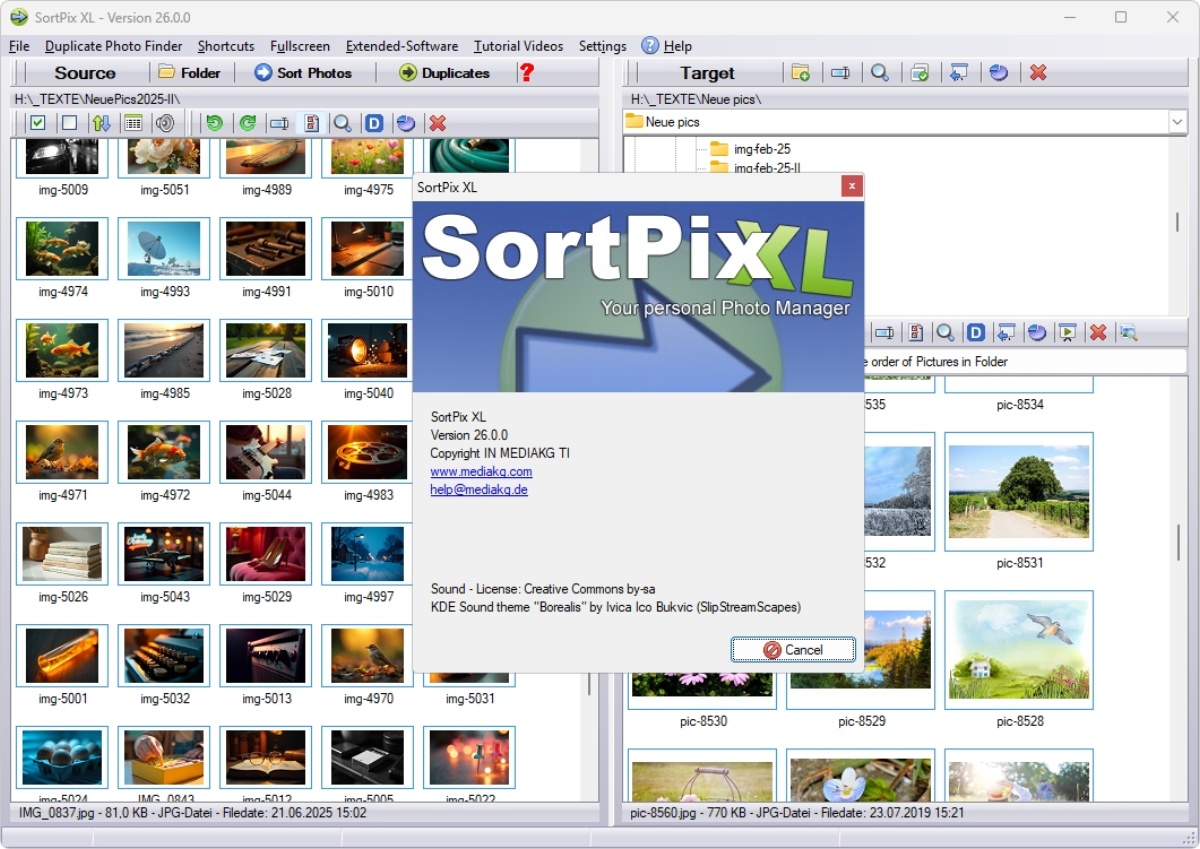
Backup strategies are necessary when working with photo organization software Windows 11. Keeping copies of images in separate locations ensures that valuable memories are not lost on account of hardware failures or accidental deletions. SortPix XL supports various export options that allow users to save their organized collections in multiple formats. This capability also facilitates sharing with friends and family, besides online galleries or social media platforms. Regularly updating backups is fundamental to maintain an organized and secure photo library.
Managing duplicates is another critical concern in photo organization. Over time, it is common for users to inadvertently accumulate duplicate images, leading to cluttered collections. Fortunately, SortPix XL provides tools to identify and manage these duplicates, allowing for easy removal or consolidation. This feature helps maintain a clean and organized library, making it easier to showcase photos without unnecessary repetition. An organized collection not only amplifies accessibility but also contributes to a more pleasant viewing experience.
Incorporating editing tools within photo organization software Windows 11 can also aid users in refining their collections. Basic editing features such as cropping, adjusting brightness, and applying filters can augment the visual appeal of images directly within the organization software. SortPix XL offers some editing capabilities that allow users to make quick adjustments without needing to switch to different software. This integration simplifies the process of improving photo quality even though managing the collection simultaneously. It encourages a more streamlined workflow, minimizing disruptions during the organization process.
Detailed Guide to Photo Organization Software for Windows 11
To effectively organize photos for Windows 11, consider using software that allows for easy categorization, tagging, and searching, ensuring quick access to your images.
Effective photo organization for Windows 11 involves utilizing specialized software designed to streamline the process of managing digital images. Various tools allow users to sort, categorize, and edit photos, making it easier to access and enjoy a diverse collection. By employing features such as facial recognition, tagging, and customizable albums, users can boost their photo management experience. Additionally, certain software solutions integrate flawlessly with cloud storage, ensuring that photos remain safe and accessible from multiple devices. This level of organization not only saves time but also nurtures a more enjoyable way to relive memories captured over the years.
When considering photo organization software for Windows 11, it is indispensable to identify specific features that meet individual needs. For instance, automatic sorting based on date, location, or album can significantly reduce the manual effort required to manage a large library. Many programs include editing tools that allow users to adjust brightness, contrast, and other elements directly within the software, thus eliminating the need for separate applications. Moreover, some solutions offer batch processing capabilities, enabling multiple photos to be edited or reorganized simultaneously, which is particularly beneficial for those with extensive collections. The support for various file formats also plays a essential role in ensuring compatibility with existing photo libraries.
Cloud integration is another crucial aspect of modern photo organization software for Windows 11. Many practical purposes forfer synchronization with cloud services, providing users with the flexibility to access their images from any location whereas also backing them up securely. This functionality is especially valuable in preventing data loss as a result of hardware failures or accidental deletions. Users can share photos easily through secure links or collaborative albums, augmenting social sharing experiences without sacrificing organization. Overall, cloud features considerably augment the utility of photo organization software Windows 11.
User experience also significantly influences the effectiveness of photo organization software. A well-designed interface can make navigation intuitive, allowing users to locate photos quickly and efficiently. Advanced search functionalities, such as keyword searches or filters based on tags, enrich the ability to find images among vast collections. Additionally, customizable layouts enable users to arrange their photo libraries according to personal preferences, creating a more customized experience. Learning curves can vary, so user-friendly software tends to attract more users by minimizing the time needed to become proficient.
Another significant consideration is the capacity for users to create and maintain personalized galleries or albums. Many software options allow for the grouping of images based on themes, events, or projects, making it easier to showcase collections in a visually appealing format. This feature is valuable for people who frequently share their photos online or who wish to create digital portfolios. The ability to add descriptions or metadata to images enriches the organization and boosts their storytelling potential. As a result, users can establish a clear narrative or theme throughout their galleries, improving the overall viewing experience.
The upside of security in photo organization software cannot be understated. Given the sentimental value of many personal images, sturdy security features are necessary for protecting privacy and preventing unauthorized access. Encryption options and password protection can provide peace of mind for users concerned about their data’s safety. Furthermore, regular updates help mitigate vulnerabilities, ensuring that the software remains reliable against emerging threats. By choosing software with strong security measures, users can focus on organization without excessive worry.
Outline of Special Services for Photo Organization for Windows 11
Examine special services offered by photo organization software for Windows 11, such as cloud storage integration, automatic backups, and advanced search methods to improve your workflow.
Efficient management of digital images is critical in today’s visual-centric world. Users often encounter challenges in locating, categorizing, and sharing their photo collections. With the advent of photo organization software Windows 11, several features have been designed to address these concerns. This software typically offers vigorous tagging and searching capabilities, making it easier to find specific images amidst large libraries. Additionally, the software can assist in automating the organization process, allowing users to maintain a tidy library without extensive manual intervention.
Many photo organization tools provide various categorization methods, including the use of albums and folders. Users have the option to create customized folders based on specific themes, events, or dates. This approach enables enthusiasts to group their images logically, making retrieval straightforward and intuitive. Furthermore, some software solutions offer facial recognition technology, automatically sorting photos based on identified individuals. This feature significantly improves efficiency, particularly for those with extensive collections featuring family and friends.
Another vital aspect of photo organization software Windows 11 is its integration with cloud services. Many tools provide smooth synchronization with popular cloud storage platforms, allowing for safe and accessible storage of images. This integration not only helps in backing up photos but also facilitates access from multiple devices. Users can edit or organize their collections on a desktop and view them on a mobile device or tablet. Such versatility ensures that users can maintain their digital libraries regardless of their location.
The tagging system within many photo organization applications allows users to assign keywords to images. This function greatly strengthens searchability by enabling users to filter photos based on various attributes. For example, photos can be tagged by location, event, or subject matter, creating a detailed index. This method proves beneficial when searching for specific images and provides a thorough overview of a collection. Utilizing a well-structured tagging system can significantly boost efficiency and save time.
In addition to organization features, many software solutions also focus on editing capabilities. Basic editing tools, such as cropping, adjusting brightness, and applying filters, are integrated into the photo organization software Windows 11. This functionality allows users to augment their images without needing to switch to dedicated photo editing software. The convenience of having these features combined encourages users to maintain a consistent aesthetic across their collections. Moreover, batch editing options can expedite the process of making uniform adjustments to multiple photos.
Users may also benefit from the ability to create slideshows or share collections directly from the software. Many functions offer features that allow for easy sharing on social media platforms or via email. This capability can be particularly useful for photographers wishing to showcase their work or individualists wanting to share memories with friends and family. By simplifying the sharing process, photo organization software Windows 11 helps users remain connected meanwhile preserving their favorite moments. Therefore, the integration of sharing features augments the user experience overall.
Special Services Photo Organization Software for Windows 11
| Feature | Description | Method | Tips | Considerations |
|---|---|---|---|---|
| Automatic Tagging | This feature allows users to automatically tag photos based on facial recognition and content analysis, making organization effortless. | Utilize built-in algorithms to scan images and apply relevant tags, which can be later used for easy searching and sorting. | Assure that the software is regularly updated to improve tagging accuracy over time. | Be cautious about privacy settings, especially when sharing tagged photos across different platforms. |
| Batch Processing | Batch processing enables users to apply edits or tags to multiple images simultaneously, significantly speeding up the organization process. | Select a group of photos, and apply desired changes in one action to save time and reduce repetitive tasks. | Organize photos into folders before batch processing to streamline the workflow. | Check for errors in batch tags to guarantee consistency across all selected images. |
| Customizable Albums | Customizable albums allow users to create themed collections of photos, making it easy to manage and showcase specific events or subjects. | Create albums based on dates, events, or personal preferences, with options to easily move photos between albums. | Regularly update albums to reflect new additions or remove outdated photos to keep collections relevant. | Consider how albums are shared or accessed by others and maintain organization for collaborative projects. |
| Cloud Integration | Integrating cloud storage provides secure backup options and enables access to photos from multiple devices, which is indispensable for flawless photo management. | Sync your organization software with cloud services to secure that your photo library is always up to date and accessible. | Regularly check cloud storage limits and manage space effectively to prevent issues with uploads. | Be aware of the security measures in place for cloud storage, particularly for sensitive or private images. |
| Advanced Search Features | Advanced search features allow users to filter photos by various criteria, including date, location, and tags, making it easier to locate specific images. | Utilize search functionalities to quickly find photos based on previously applied tags or date ranges. | Experiment with different search parameters to understand the full capabilities of the search functionality. | Familiarize yourself with software-specific syntax for advanced search options to boost efficiency. |
Common Mistakes in Photo Sorting with Organization Software for Windows 11
Common mistakes with photo organization software for Windows 11 include neglecting to back up files regularly, failing to utilize tags, and not establishing a consistent naming convention.
Photo organization software Windows 11 can streamline the process of managing digital images, yet users often encounter pitfalls that hinder efficiency and accessibility. One common mistake involves neglecting to create a structured folder hierarchy. Without a clear system of organization, finding specific images can become a overwhelming task, especially as the collection grows. Users may benefit from devising a method based on events, themes, or dates, making retrieval straightforward. Merely relying on default settings or random placement of files can lead to frustration and wasted time in searching for desired photos.
Another frequent error is overlooking the importance of metadata. Photo organization software Windows 11 often allows for the addition of tags, descriptions, and other details that enrich search functionality. Failing to utilize these features means images are less searchable and harder to categorize effectively. Users may believe that visual memory alone will suffice when recalling the contents of their photo libraries, but this assumption can lead to inefficiencies. As collections expand, the absence of well-maintained metadata can turn quick access into an arduous task.
Inconsistent naming conventions can also complicate photo management. Many users do not adhere to a systematic approach when saving files, leading to a mix of formats, abbreviations, and unintuitive names. This inconsistency can create significant challenges when attempting to locate or sort photos. Standardizing file names based on recognizable patterns, such as including dates or event titles, can greatly alleviate this issue. Establishing a naming protocol promotes organization and reduces the risk of duplications or lost files.
Additionally, relying solely on one device for photo storage is another mistake that can prove detrimental. Meanwhile photo organization software Windows 11 may provide sufficient tools for sorting and managing images, it is crucial to take into account backup solutions. Keeping photos on a single device creates a vulnerability to data loss from hardware malfunctions or cyber threats. Implementing a strategy that includes both local and cloud storage options can safeguard against unforeseen loss. This approach ensures that images remain accessible across various platforms and devices.
Ignoring regular maintenance of the photo library can lead to clutter and disorganization over time. Users may upload new images without taking the time to review and sort older files. This accumulation can make the overall library overwhelming and difficult to navigate. Regularly assessing and curating photos helps maintain an organized system, allowing for efficient usage of photo organization software Windows 11. Scheduling periodic reviews of the library can help users stay on top of their collections and identify any redundancies or irrelevant files.
Another mistake involves assuming that all images need to be kept indefinitely. In the digital age, it is common for users to accumulate thousands of photos, many of which may lack significance. Dedicating time to evaluate the relevance of images can lead to a more streamlined collection. Deleting duplicates, blurry shots, or unremarkable photos can open up storage space and improve the overall quality of the library. This process not only helps maintain organization but also encourages a more meaningful engagement with the remaining images.
Mistakes to Avoid When Using Photo Organization Software for Sorting for Windows 11
Photo organization software can greatly augment your ability to manage and sort your images, but there are common mistakes users often make that can lead to confusion, lost images, or inefficient organization. Here’s a list of potential pitfalls to watch out for:
- Not backing up photos before sorting: Failing to create a backup can result in irreversible loss if something goes wrong during sorting.
- Ignoring metadata: Not utilizing metadata tags can make searching and sorting photos much more difficult later on.
- Disorganized folder structures: Creating overly complex folder hierarchies can make it hard to find images quickly.
- Inconsistent naming conventions: Using different naming styles can cause confusion and hinder efficient sorting.
- Neglecting to delete duplicates: Keeping duplicate images can clutter your library and make sorting less effective.
- Failing to use face recognition features: Not taking advantage of automatic face tagging can result in longer sorting times.
- Not utilizing collections or albums: Relying solely on folders can limit your ability to easily access themed groups of photos.
- Overlooking software updates: Not keeping the photo organization software up to date can lead to missing out on new features and improvements.
- Not categorizing by events: Failing to sort photos by events or occasions can make it harder to retrieve specific memories.
- Ignoring search functions: Not learning how to effectively use search features can waste time when looking for specific images.
- Disregarding the importance of regular maintenance: Neglecting to periodically review and organize can lead to an overwhelming library.
- Not using cloud storage options: Avoiding cloud backups can risk losing photos in case of hardware failures.
- Skipping tagging important images: Forgetting to tag significant photos can make them hard to locate in the future.
- Using complex sorting criteria: Overcomplicating the sorting process can slow down the organization and make it less intuitive.
- Failing to learn software features: Not investing time to learn all the features of the photo organization software can limit your efficiency.